Does this replace Google Classroom?
No. Classroom remains the source of course assignments and published data. Teachers Little Helper complements the teacher workflow.
Teachers Little Helper
Teachers Little Helper brings student submissions and assessment work into one desktop app. Review assignments across your courses, look at text, images and code, and prepare useful feedback without building a separate tracking spreadsheet.
Download for Windows, Mac or Linux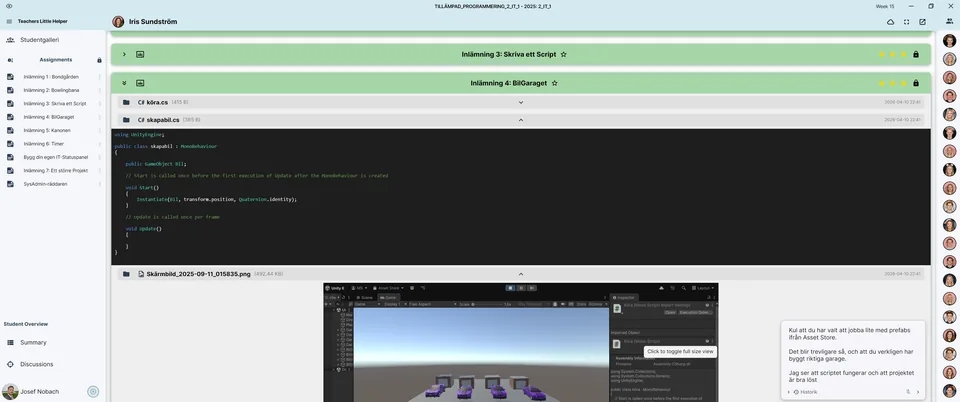
Browse Google Classroom courses, students, assignments and submitted work. Use the overview to find the student work you need to review and keep the context of the assignment close at hand.
Write teacher feedback, save assessments and keep notes as you review student work. The app also supports dictating feedback. You make the assessment decisions; the software helps you organise the evidence and the next steps.
Saving an assessment locally does not automatically publish it to your school platform. An enabled Classroom integration can publish private comments. Studybee feedback and grades require access to Studybee and enabled automatic synchronisation for the course.
This fictional example concerns a loop that works for ordinary values but fails for an empty list. Choose a next step based on the assignment goals.
Your loop gives the correct result for the list with three values. Now test an empty list and explain why the result differs. Then show how you can handle both cases.
Write or dictate the comment, check the text and save your evidence. Publish with the required integration enabled, then verify the result in the service.
No. Classroom remains the source of course assignments and published data. Teachers Little Helper complements the teacher workflow.
Yes, the app brings together text, code and images where these are available in a submission.
Locally saved data and downloaded files can be used on your computer. Signing in, fetching new work and publishing feedback require internet access.