Is speech-to-text the same as automatic grading?
No. It converts the teacher’s speech into text. You review the work and remain responsible for the feedback.
Teachers Little Helper
Dictation in Teachers Little Helper turns your spoken feedback into text within your teaching workflow. Review the student’s submission, speak your comment, then check the transcript before saving or publishing it.
Download for Windows, Mac or Linux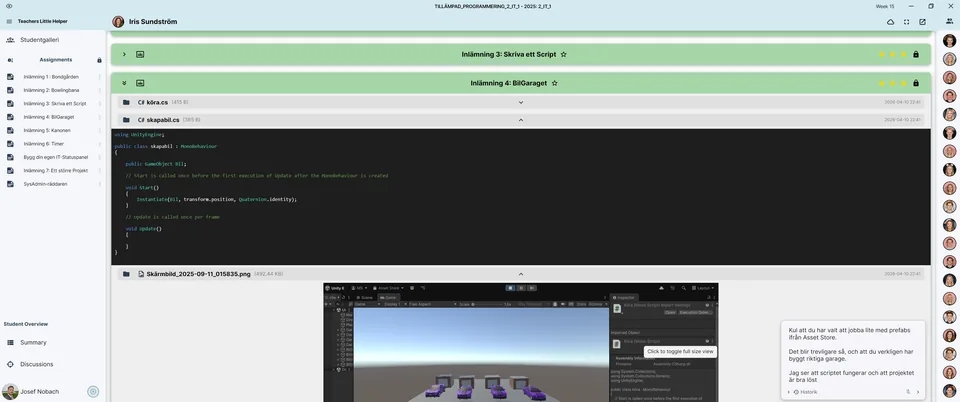
Dictation buttons are available beside comment fields in the app. You decide what feedback to give; speech recognition helps enter the text. It does not assess the student or automatically generate a teaching judgement.
Keep the student’s text, code or images in view. Describe a specific observation and a useful next step, stop recording and review the transcript. Correct names, subject terminology and recognition errors before using the comment.
Dictation uses a local speech engine. The app may need to download dictation components on first use. You need a microphone and microphone permission. Publishing comments to Google Classroom or Studybee still requires the appropriate integration, access rights and an internet connection.
This fictional example shows a teacher giving their own feedback on a writing assignment. Start with something you actually observed in the work.
Your conclusion is clear. The next step is to connect it to an example from the text. Choose a quotation and explain how it supports your reasoning.
Stop recording and read the transcript. Correct subject terminology and punctuation before saving. You remain responsible for the comment’s content.
No. It converts the teacher’s speech into text. You review the work and remain responsible for the feedback.
You can dictate text in the app’s comment fields. Publishing to Classroom requires the enabled integration and appropriate account access.
Dictation and publication are separate steps. Check the text and publication settings before sending feedback.